
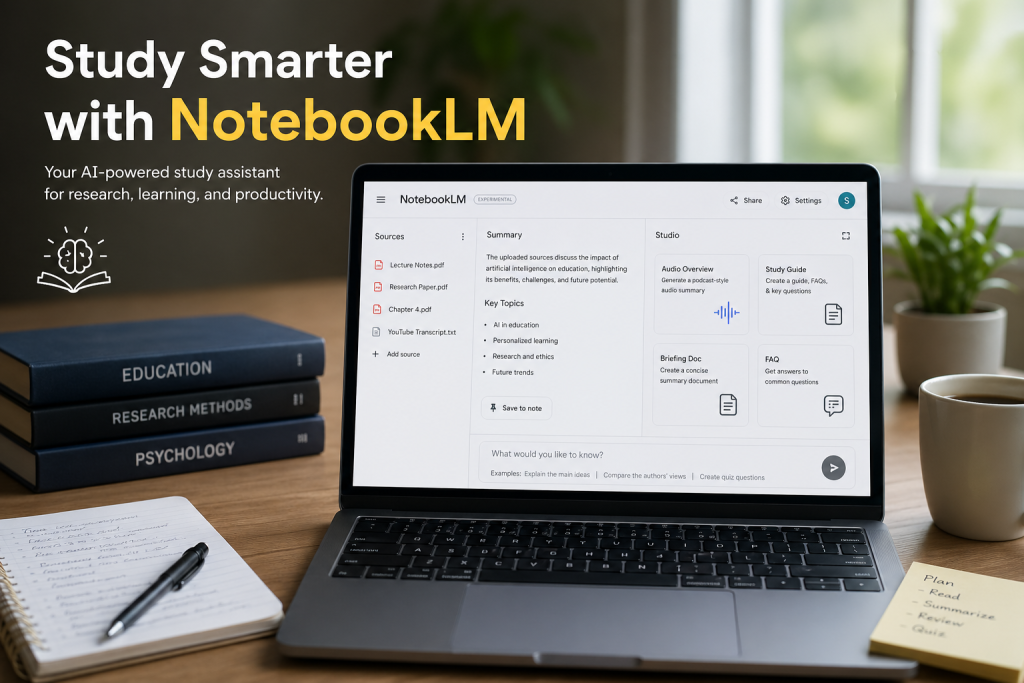
Artificial Intelligence is changing how students learn, and NotebookLM is one of the most useful tools for studying, research, and productivity. But knowing how to use it matters just as much as knowing why to use it.
Here are 10 practical ways to use NotebookLM, along with step-by-step instructions for each.
1. Summarize YouTube Videos
How to do it:
- Open a YouTube educational video you want to study.
- Copy the video transcript (click “Show Transcript” under the video).
- Open NotebookLM.
- Create a new notebook.
- Paste the transcript or upload it as a source.
- Ask prompts like:
- Summarize this lecture in key points.
- Generate study questions from this video.
- Explain the main concepts simply.
- Use the generated summary for revision.
Best for: Lecture reviews, exam preparation, research.
2. Create Self-Assessment Quizzes
How to do it:
- Upload class notes, textbook chapters, or lecture slides.
- In NotebookLM prompt box, ask:
- Generate a quiz from this material.
- Create multiple choice questions.
- Test me on this chapter.
- Answer the questions yourself.
- Review mistakes and revisit weak topics.
- Repeat until concepts are clear.
Best for: Exam preparation and comprehension checking.
3. Use NotebookLM as a Study Discussion Partner
How to do it:
- Upload notes or reading materials.
- Ask analytical questions such as:
- Compare these two theories.
- Challenge my understanding of this concept.
- Ask me discussion questions.
- Use the responses to deepen understanding.
- Refine your questions for more critical analysis.
Best for: Critical thinking and discussion preparation.
4. Find Research Gaps
How to do it:
- Upload several research papers or journal articles.
- Ask prompts like:
- Identify gaps in these studies.
- What topics need further research?
- Suggest research questions from these sources.
- Review the suggestions.
- Cross-check ideas manually.
- Use them to refine your proposal or thesis topic.
Best for: Thesis and academic research.
5. Generate Audio Summaries
How to do it:
- Upload readings or notes.
- Use NotebookLM’s Audio Summary/Podcast feature.
- Generate an audio explanation.
- Listen while commuting, walking, or revising.
- Replay important sections as needed.
Best for: Auditory learners and flexible study.
6. Create Visual Learning Aids
How to do it:
- Upload content you want to visualize.
- Ask NotebookLM to create:
- Concept maps
- Flowcharts
- Infographics
- Slides
- Review the visual outputs.
- Use them for revision or presentations.
Best for: Complex concepts and visual learners.
7. Compare Multiple Sources
How to do it:
- Upload two or more articles or chapters.
- Ask:
- Compare these sources.
- What do the authors agree or disagree on?
- Summarize major themes.
- Review similarities and differences.
- Use the synthesis for literature reviews or assignments.
Best for: Research papers and analytical writing.
8. Build Personalized Study Guides
How to do it:
- Upload lecture notes, readings, and slides.
- Prompt:
- Create a study guide from these materials.
- Make chapter-wise revision notes.
- Generate important exam questions.
- Organize the output by topic.
- Use it as your custom exam guide.
Best for: Efficient revision.
9. Improve Essays and Test Arguments
How to do it:
- Upload your essay draft with reference sources.
- Ask NotebookLM:
- Review my argument.
- Identify logical gaps.
- Does my evidence support my claims?
- Review feedback.
- Revise your draft.
- Repeat before final submission.
Best for: Academic writing improvement.
10. Prepare for Presentations or Viva
How to do it:
- Upload presentation slides or seminar notes.
- Ask:
- Generate possible viva questions.
- Ask challenging discussion questions.
- Simulate audience questions.
- Practice answering them.
- Improve weak responses.
- Rehearse until confident.
Best for: Seminars, viva, and presentations.
References
- Kharbach, M. (2026). 10 Unexpected Ways to Use NotebookLM with Your Students. Med Kharbach.
- Google. NotebookLM. Official AI-powered research and learning assistant documentation.